


4 min read
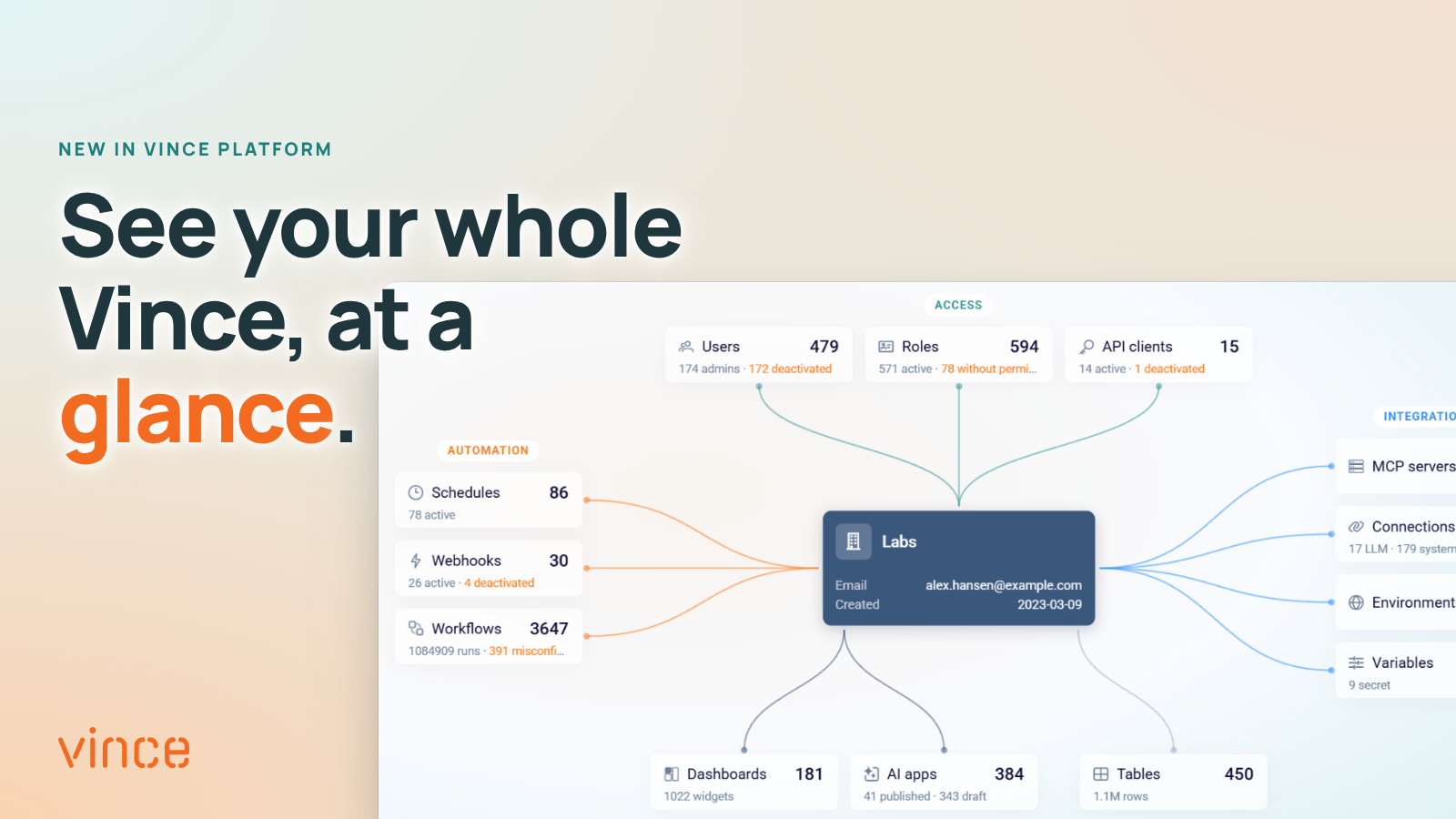
This is one of the biggest updates to Vince Platform this year. The new Company Overview gives you one map of your whole tenant: people and roles, workflows and schedules, apps, dashboards, tables and the connections to your other systems. You see what you have, how it connects and what needs attention, all on one screen. And a new home page shows you what you came to do.
Available now in Vince Platform.
Why this is a big deal
As Vince Platform grows in your business, so does your tenant. More people build apps and workflows, more systems get connected, and more depends on things nobody looks at every day.
Until now, each kind of item had its own page in Administration: users in one place, workflows in another, connections in a third. The picture of how it all fits together lived in people’s heads, or in a spreadsheet someone tried to keep up to date.
The Company Overview changes that. For the first time, you see your whole tenant in one place, with the links between everything drawn out for you. It is a new way to run Vince Platform, not just a new page.
A question that used to take a morning
Say you need to change a workflow that sends orders to M3, or switch it off. Before you do, you want to know what it touches. Which dashboards and AI apps use it? What triggers it: a schedule, a webhook? Which connections, tables and variables does it use? And who can reach it?
Until now, finding out meant opening page after page and keeping notes. With Product 360, you put workflows in the middle of the map, and the answers are all around it. You make the change knowing what it affects.
The same goes for the questions administrators get every week. Which workflows rely on this connection? Who can reach these workflows? What is set up, but not used by anything?
One map of your whole tenant
At the heart of the Company Overview is Product 360: one map of your whole tenant, with your company in the middle and everything around it, in five groups:
- Access: users, roles and API clients
- Automation: schedules, webhooks and workflows
- Integrations: MCP servers, connections, environments and variables
- Surfaces: dashboards and AI apps
- Data: tables
Each node shows how many you have and a short status line, such as how many users are deactivated or how many apps are still drafts. Anything that needs attention is marked in orange.
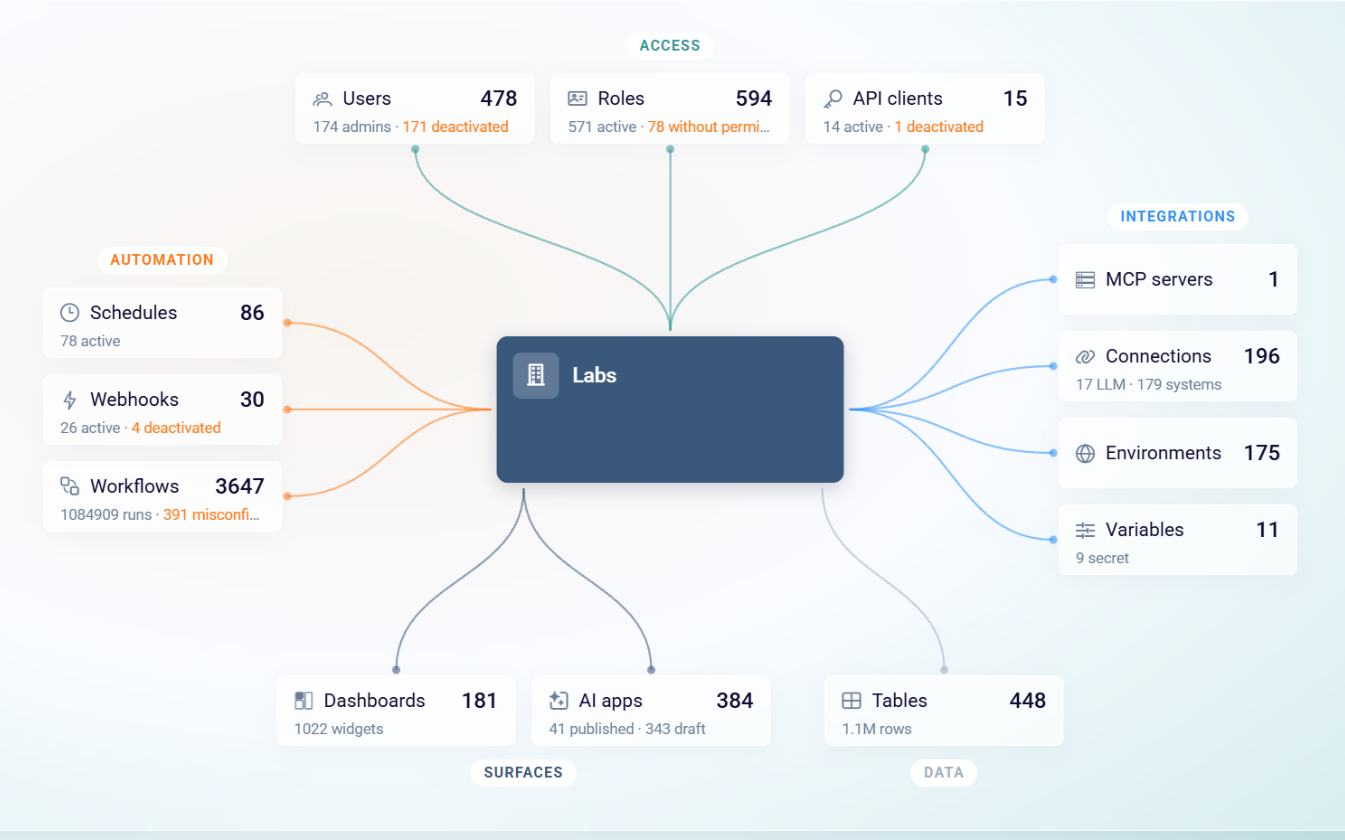
Product 360 puts your company in the middle, with everything in your tenant around it.
Follow the connections
Click a node, and it moves to the middle. The map then shows what that kind of item is connected to.
Choose Workflows, for example, and you see what uses them (dashboards and AI apps), what triggers them (schedules and webhooks), what they use (environments, tables, connections and variables) and who can reach them (users, API clients and roles).
A panel beside the map lists the items themselves, with tabs for all of them, the ones with issues and recent activity, and a link to open each one. A breadcrumb shows where you are, and one click takes you back to your company.
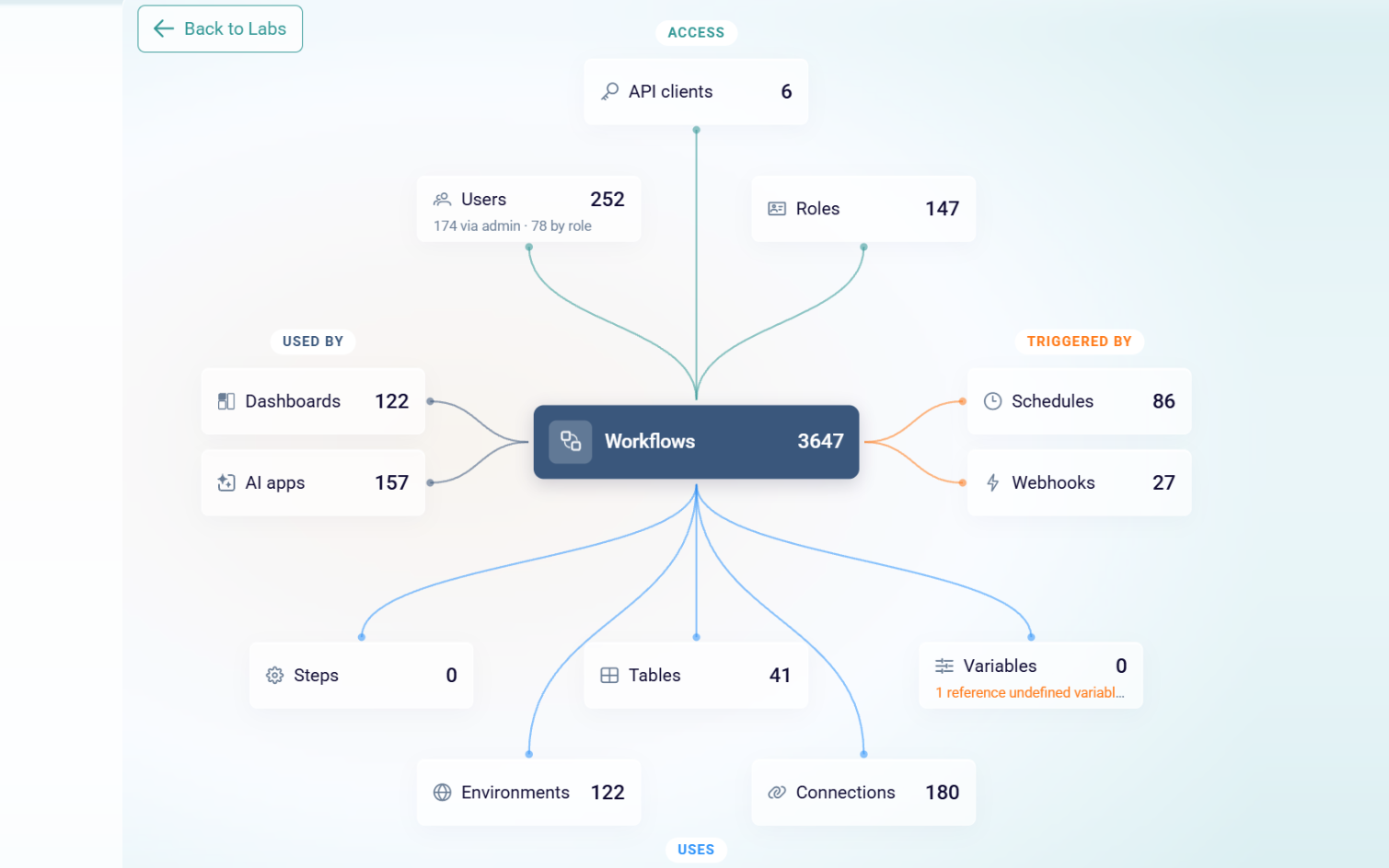
Put workflows in the middle to see what uses them, what triggers them, what they use and who can reach them.
Answers before you ask
The Overview tab shows the health of your tenant at a glance. Cards for users, cost, roles, API clients, connections, webhooks, MCP servers, workflows, AI apps and dashboards each pair the number with what needs attention: deactivated users, misconfigured workflows, apps still in draft. Click a card to go straight to the page behind it.
With the cards sits a smaller version of the map and a log of recent activity that you can filter by user, area, action and time.
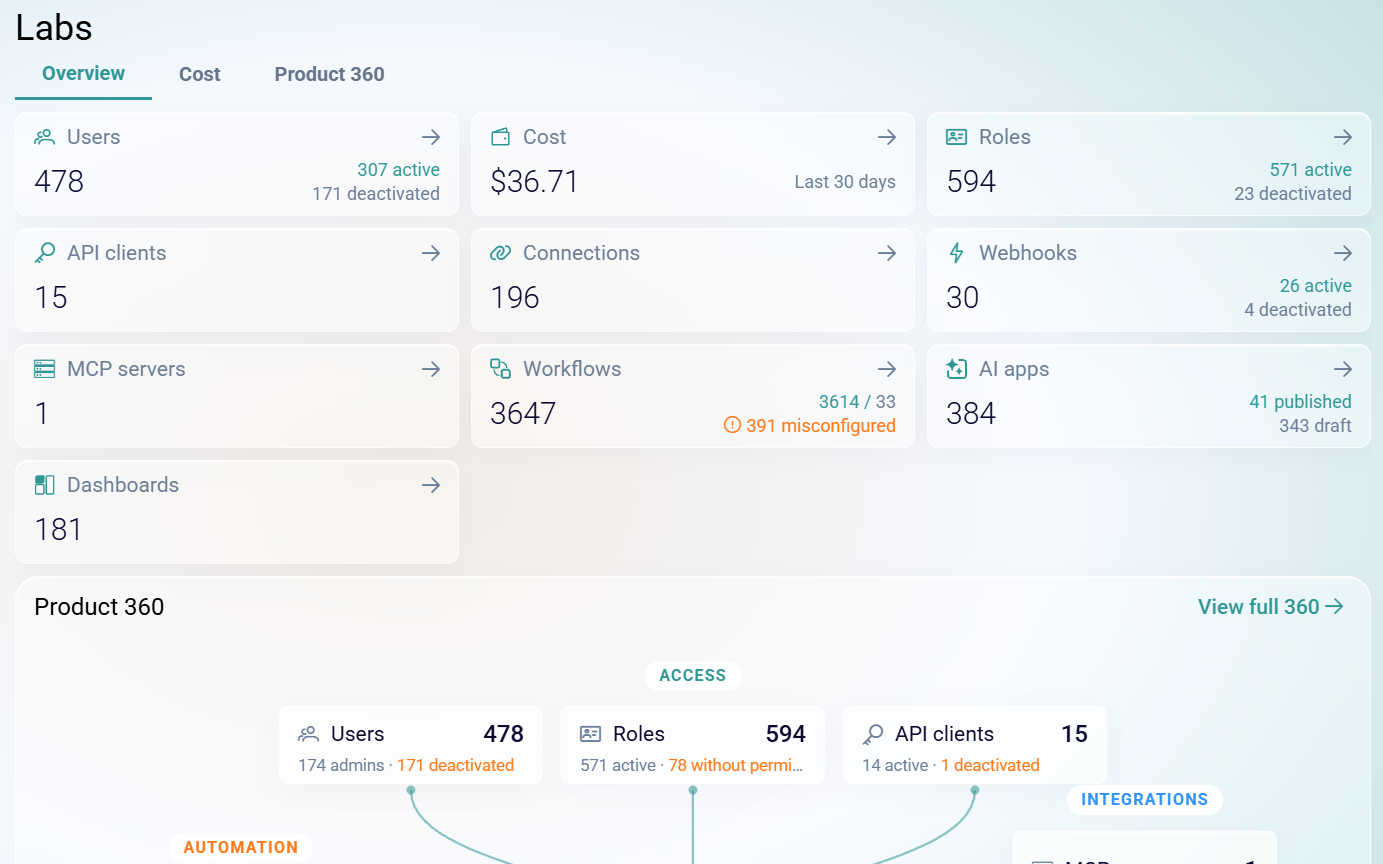
The Overview tab: key figures with what needs attention, and the map right below.
What AI costs, in the same place
The Cost tab shows what AI costs in your tenant, per day, per system and model, and per connection, with a breakdown of tokens. It sits right next to the map, so cost and usage are never more than one click apart.
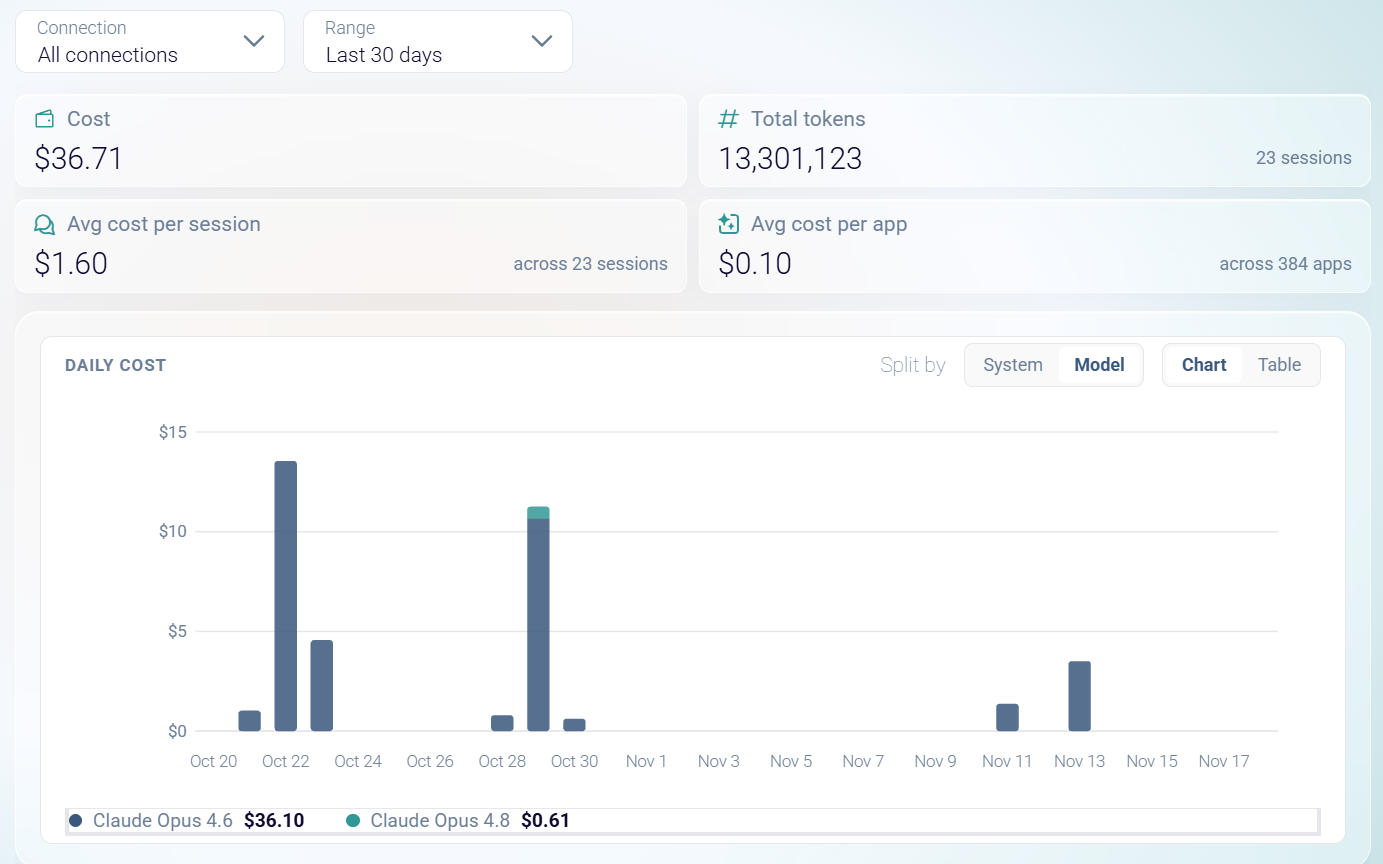
The Cost tab: what AI costs, per day and per model, with totals per session and per app.
A home page that gets out of the way
The Company Overview is for the people who run Vince Platform. The new home page is for everyone, and it greets you with “Let’s keep things moving”.
- Describe what you want to build. Type it in, and go straight to creating the app.
- Straight into the action. Click Create workflow, New table or Create dashboard, and you start right there. You skip the list page and everything that has to load before you can begin.
- Shortcuts you choose. Click + to pick up to six shortcuts: quick actions, or the admin pages you use most, such as Users, Roles, Schedules, Webhooks, Connections or Workflow Monitoring. Show them in a circle around the Vince V or in a line, and hide the “Describe what you want to build” bar if you do not need it.
- Continue where you left off. The apps, workflows, tables and dashboards you opened last. The list fills up as you work, so you are always one click from what you were doing.
- Latest updates and Recommended for you. Product news and practical tips, right where you start.
And Ask Frøy, your AI assistant, is always one click away in the header.
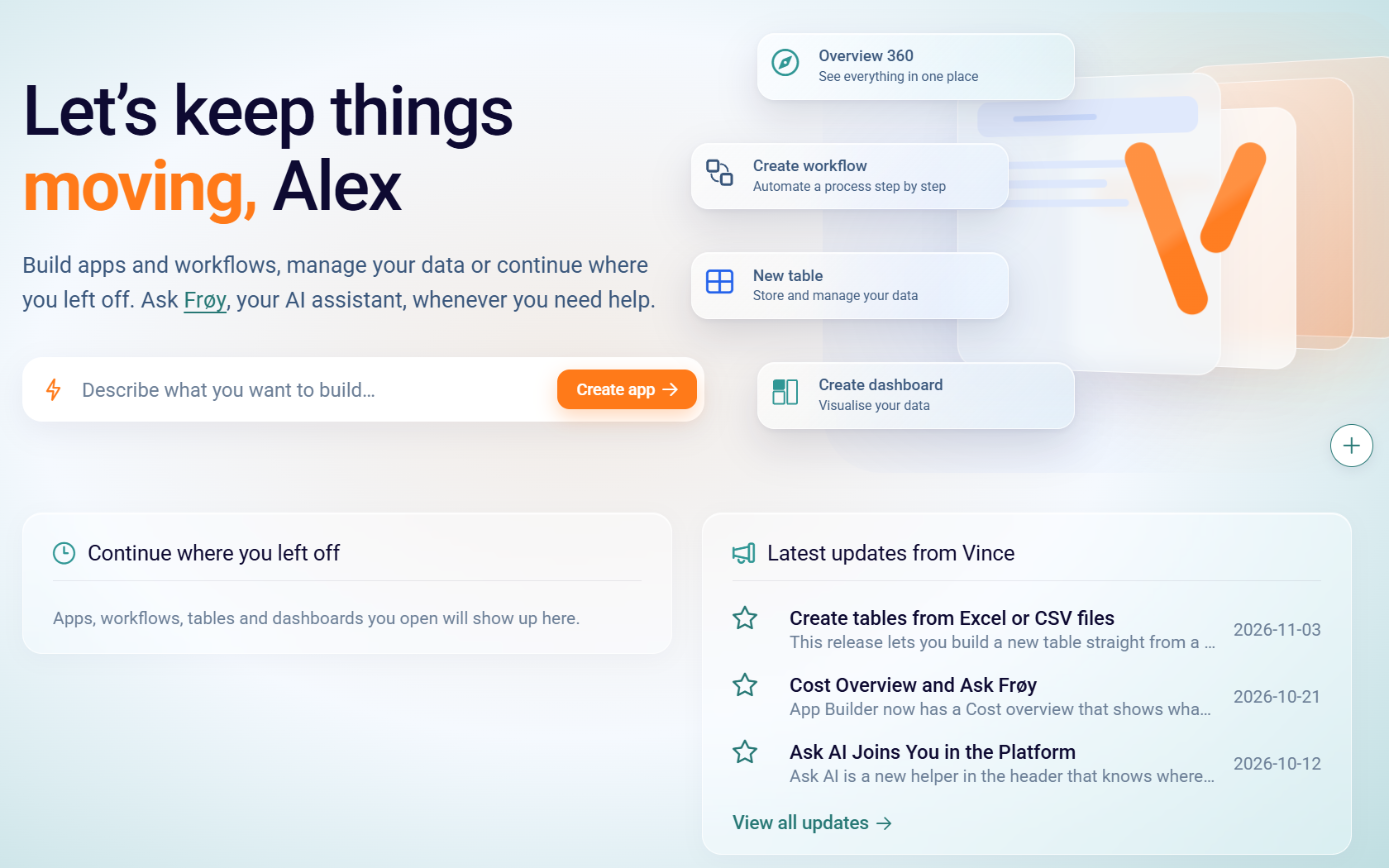
The new home page: describe what you want to build, or jump straight in.
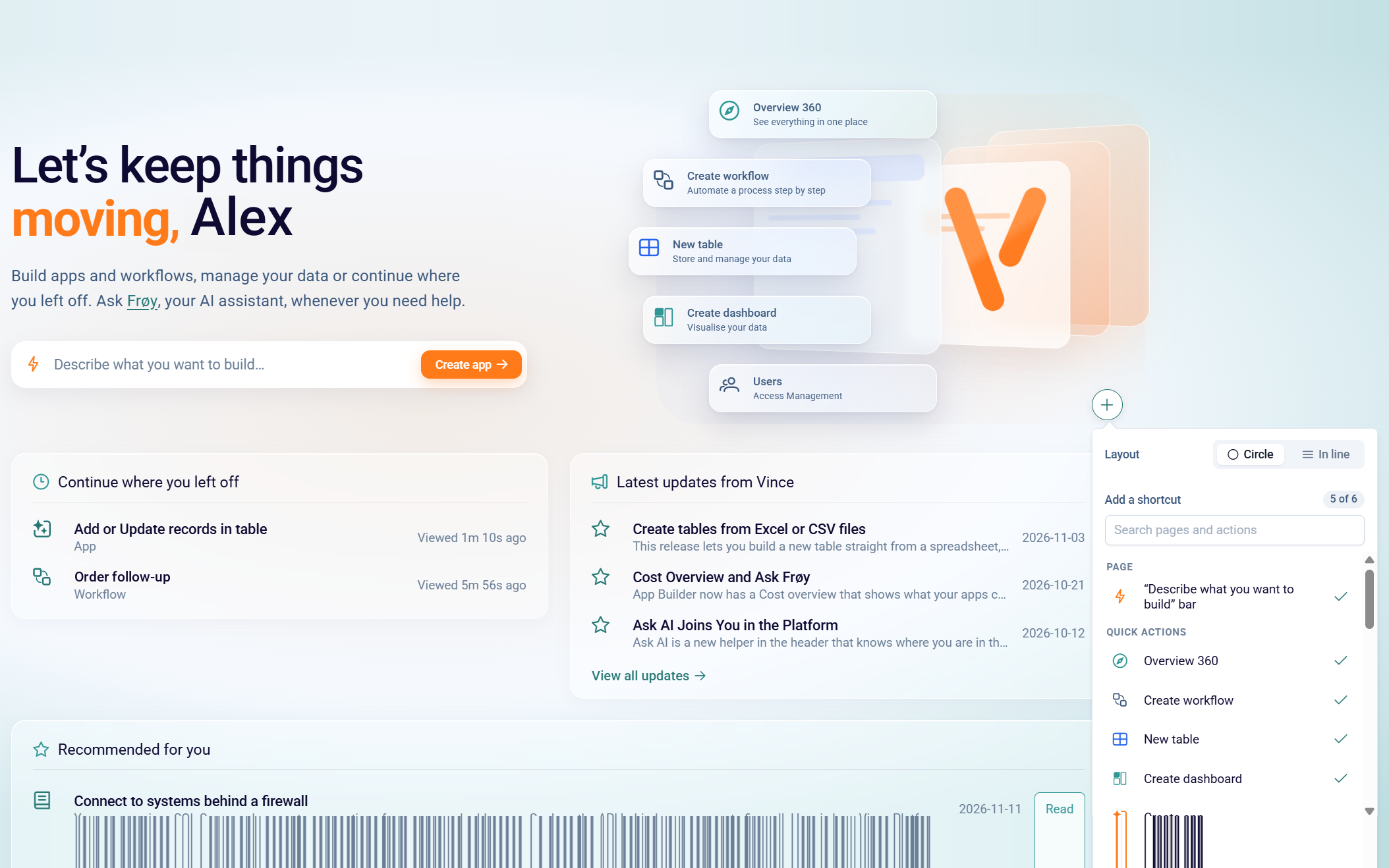
Click + to choose up to six shortcuts, and show them in a circle or in a line.
Built for the people who run Vince Platform
- Platform administrators who want the health of the tenant at a glance, not after ten clicks.
- Integration teams who need to see what depends on a workflow or connection before they change it.
- IT and security leads who want a clear view of who can reach what, and what is no longer in use. Business teams build; IT keeps the overview.
- Everyone who builds in Vince, who now starts every session on a home page made for getting work done.
The 360 view also follows your roles: what people see when they open it depends on the access their role already gives them.